Management menu
What the owner and staff of a player-owned shop do in the lation shops management menu, from prices, stock orders and deliveries to sales, staff and money, and which permission opens each tab.
The management menu is where a player-owned shop is run: its listings and prices, stock orders, timed sales, staff and money. The owner holds every permission; each employee sees only the tabs their permissions open. Every action is checked again on the server.
Opening it
The owner and staff get a Manage option with the shop's name:
- on the shop's own prompt (its ped, point or props), or
- at the shop's Management Location when an admin set one. That point works at any hour. Without one, the option disappears with the shop's prompt while the shop is closed.
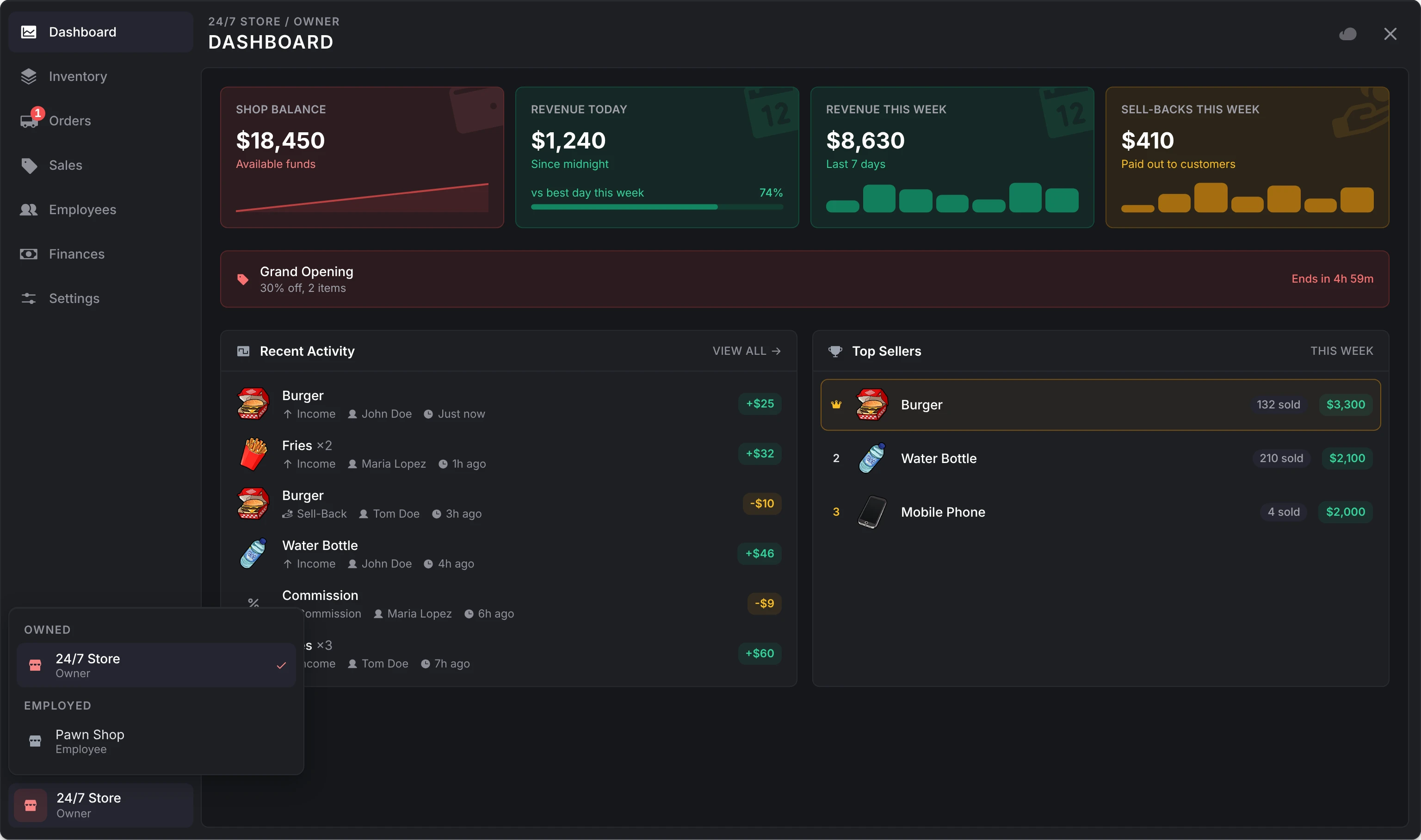
A player who owns or works at several shops switches between them from the menu's rail, where the shops they own are listed under Owned and the ones they work at under Employed. Another script can open it with openShopManagement. The menu updates itself about a second after anything happens at the shop: a purchase, a delivery, a colleague's edit.
Tabs and permissions
| Tab | Shown to | What it holds |
|---|---|---|
| Dashboard | Everyone at the shop | Balance and revenue, the running sale, top sellers, recent activity, your earnings |
| Inventory | Manage Inventory | Listings, prices, categories, stock, auto-restock |
| Orders | Place Orders, while Config > Orders > Allow stock orders is on | Ordering stock at wholesale, deliveries in progress, order history |
| Sales | Manage Sales | Timed discounts |
| Employees | Manage Employees | Hiring, roles, permissions, role presets; commission and bonuses for the owner |
| Finances | View Finances | The balance, deposits, withdrawals, revenue shares, the transaction list |
| Settings | Manage Settings, and the owner | Name and hours; transfer and abandon for the owner |
Permissions
| Permission | Lets them |
|---|---|
Manage Inventory (manage_inventory) | List catalog items, set prices, categories and sell-backs, remove listings |
Deposit Stock (deposit_stock) | Put items from their own inventory into a listing's stock, while the shop allows stock deposits |
Withdraw Stock (withdraw_stock) | Take a listing's stock into their own inventory, while the shop allows stock withdrawals |
Place Orders (place_orders) | Place and cancel stock orders, and set auto-restock rules |
Manage Sales (manage_sales) | Start and end sales |
Manage Employees (manage_employees) | Hire, fire, set roles and permissions, and keep role presets |
View Finances (view_finances) | See the balance, the dashboard's figures, sale figures and the transaction list |
Deposit Funds (deposit_funds) | Put their own money into the shop balance |
Withdraw Funds (withdraw_funds) | Take money out of the shop balance |
Manage Settings (manage_settings) | Rename the shop and set its hours, where the server allows it |
Some permissions act inside another's tab: Deposit Stock, Withdraw Stock and auto-restock rules are in a listing's editor on the Inventory tab, so they need Manage Inventory too, and Deposit Funds and Withdraw Funds are on the Finances tab, so in the menu they need View Finances too; at lation banking they work on their own (see bank accounts). Some actions are the owner's alone: setting commission, paying bonuses, transferring the shop and abandoning it. Config > Employees > Permission order sets the order the permissions are listed in, and Default permissions for new hires what a new employee starts with (nothing, out of the box).
Dashboard
The figures cover the last 7 days and only the current owner's time with the shop:
- Shop Balance, with its trend over the week
- Revenue Today since midnight, against the best day this week
- Revenue This Week, day by day
- Sell-Backs This Week, what the shop paid customers, when it buys from players
- the running sale, with its discount, what it covers and when it ends
- Top Sellers this week, and Recent Activity with View all
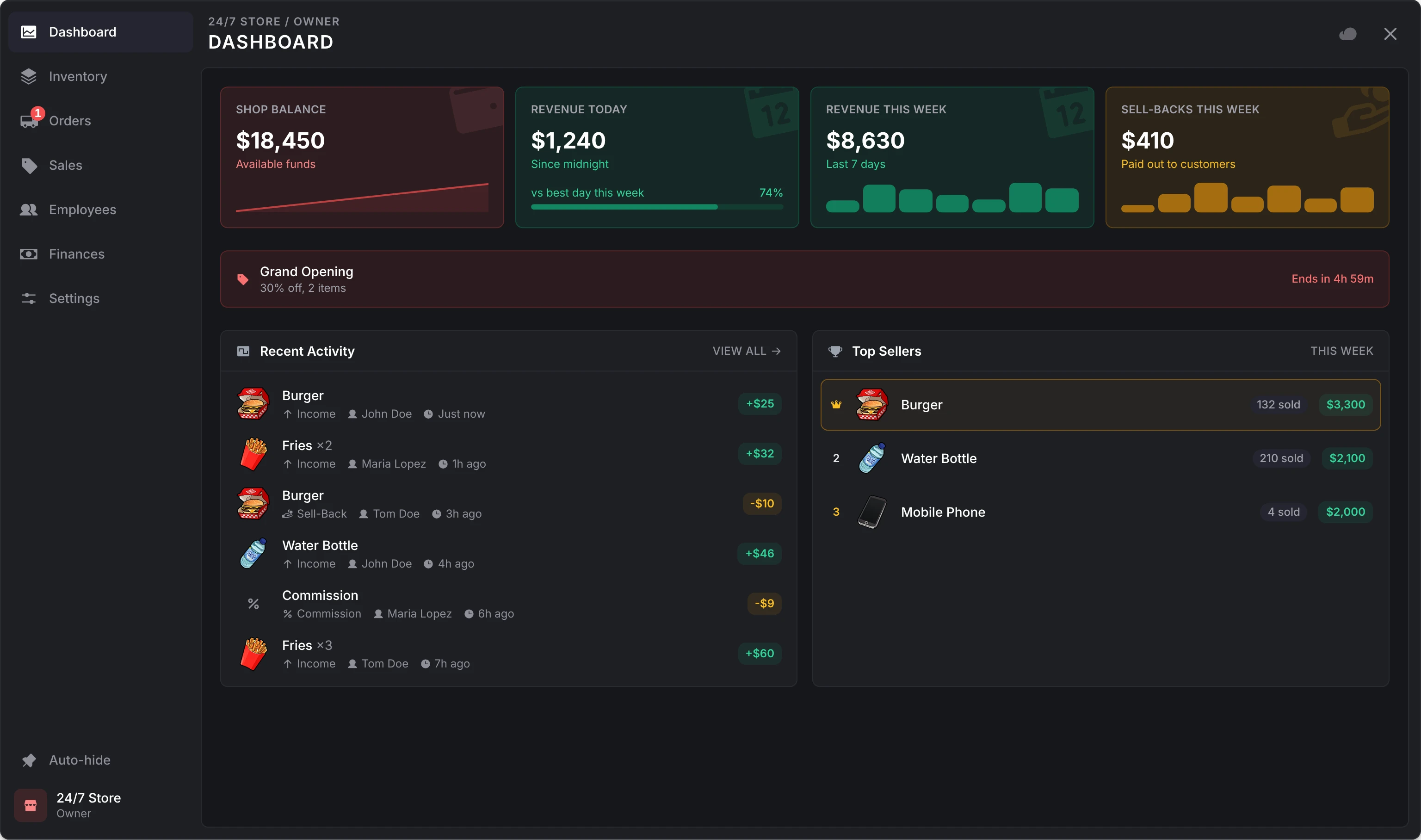
Staff without View Finances see their role, what they may do here, and links to their tabs instead of the figures. An employee with commission or a bonus waiting sees Unclaimed earnings with Claim, which pays it into the first of Config > Finances > Balance accounts.
Inventory
An owner lists only items from the shop's catalogs. Add Item opens the catalog: tick items, adjust their prices (filled in at the catalog's minimum), and add them. A new listing starts at 0 stock, to fill through orders. Categories keeps the shop's categories, which customers see.
Open a listing to edit it:
- Customers can, in a Buy & Sell shop, for an item the catalog lets players sell: Buy and sell, Buy only or Sell only (see one way only). A Sell only listing keeps its price out of sight.
- Price, within the catalog's Allowed range
- Category
- Accept sell-backs from players, in a Sell Only shop when the catalog allows it; the line under it says what the shop pays
- Stock Management: Deposit items from your inventory into its stock, or Withdraw stock into your inventory, as the shop and your permissions allow. A deposit takes no more than fits under the listing's stock cap.
- Auto-restock (below)
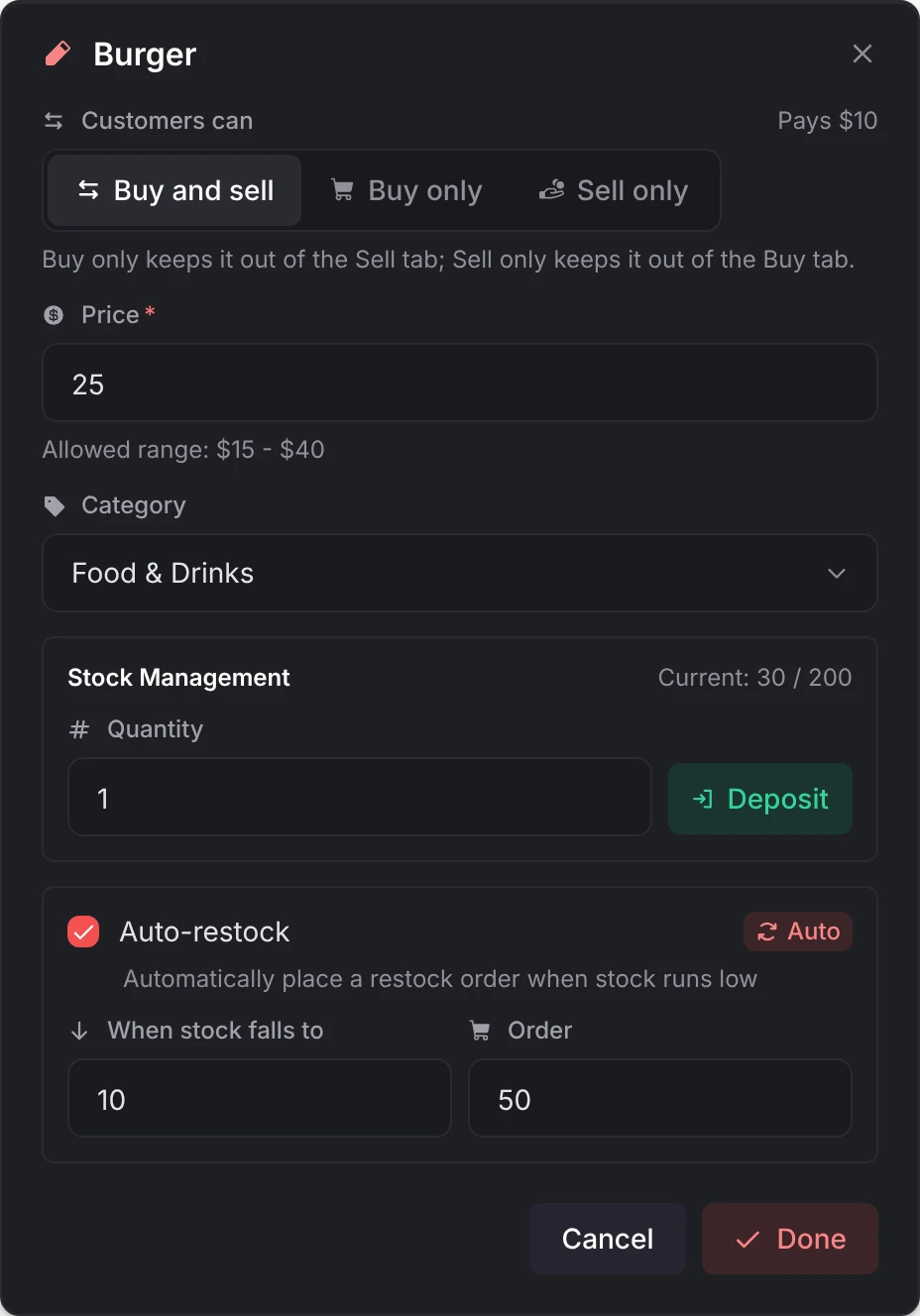
Select several listings to set their category, price (held inside each one's range) or sell-backs at once; sell-backs leave a Sell only listing as it is. In a Buy Only shop, a Sell only listing (left from when the shop bought and sold) isn't listed: its card says Sell only, and its editor offers Customers can to list it again. Removing a listing loses whatever stock it held.
Orders
The Orders tab is a catalog to order from at wholesale. Each item shows its wholesale cost, its delivery time and its stock cap. Add what you need to the order, check the balance after it, and select Place Order.
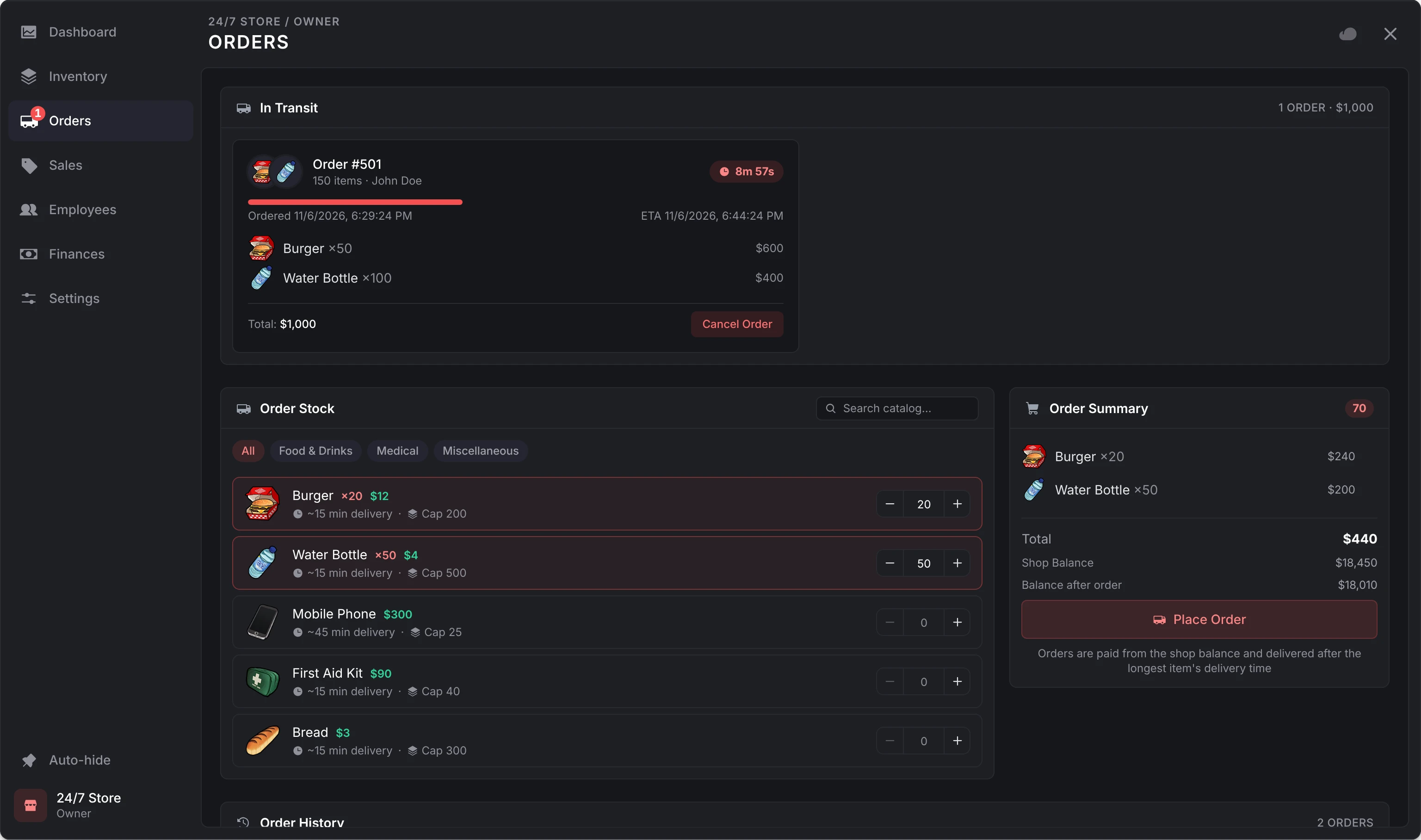
- The wholesale total is paid from the shop balance up front. The order is refused when the balance can't cover it, when it would take an item past its catalog Max Stock (counting stock on the shelf and orders on the way), and when its total is 0, so give catalog items a wholesale cost.
- An order takes as long as its slowest line: each item's catalog Delivery Time, else Config > Orders > Default delivery time (15 minutes).
- A pending order can be cancelled for Config > Orders > Order cancellation refund (75% by default) of its cost, back into the balance.
- Order again repeats a past order, trimmed to fit today's stock caps.
When an order arrives, online staff are told and its stock lands on the matching listings. A listing removed while the order was on its way is listed again, at the catalog's minimum price or wholesale cost, whichever is higher.
With Config > Orders > Allow stock orders off, the Orders tab is gone everywhere and shops are stocked by hand through stock deposits. Keep Allow Stock Deposits on for those shops.
Auto-restock
A rule on a listing reads "when stock falls to X, order Y". It is checked after a purchase or a stock withdrawal brings stock down, on player-owned shops only, and orders on the way count as stock, so an order in transit never triggers another. When the balance can't cover the order, online staff are told, at most once every 300 seconds per shop by default. Config > Orders > Allow auto-restock rules turns the editor off and stops stored rules firing.
Delivery
How an order reaches the shop is set under Config > Orders > Delivery system:
The order arrives after its delivery time, checked every 30 seconds. Orders that came due while the server was off arrive on the next start. With Config > Orders > Instant delivery on, it arrives at once.
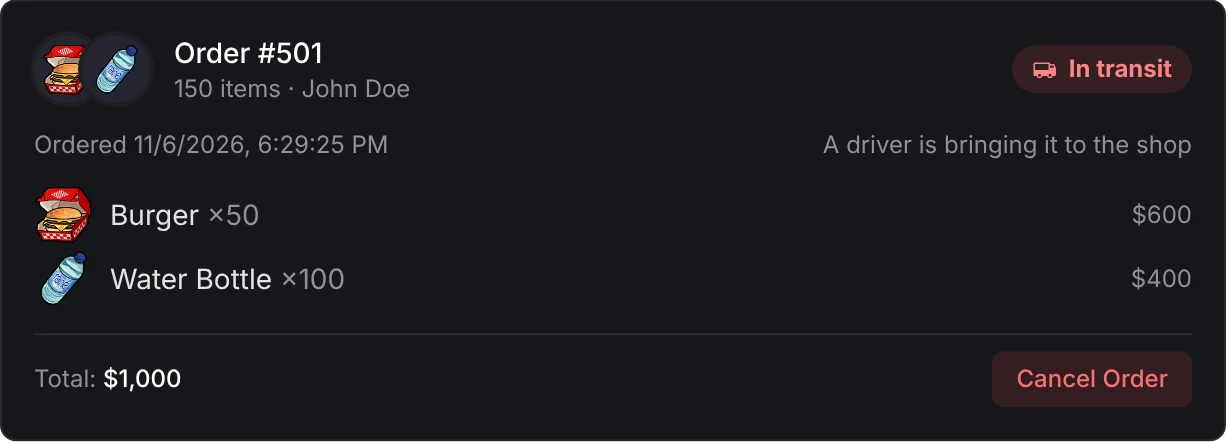
The order is posted to m-TruckerSimulator's job board under the shop's name. It shows as Awaiting pickup until a driver claims it, then In transit, and staff are told. The stock lands when the driver completes the job; a dropped job is posted again for another driver.
The driver earns Config > Orders > Delivery reward (10%) of the order's wholesale total, never less than Minimum delivery reward (500). The truck starts at a random warehouse from Pickup warehouses, or at the trucking resource's own depot when there are none.
If m-TruckerSimulator is not running, orders arrive on the timer and the console says so once. An order that can't be posted (no drop-off, or a job the trucking resource won't take) falls back to the timer too, so paid stock is never stranded.
The order is handed to your own system through the OnDeliveryRequested hook, which finishes it with the CompleteStockOrder or CancelStockOrder export. A cancelled order is withdrawn through OnDeliveryCancelled. If the hook throws an error, the order falls back to the timer. The delivery reward settings don't apply; pay your drivers in your own system.
A delivery system drives to the first drop-off it finds:
- the Delivery drop-off of the location nearest the player who placed the order
- the shop's own Delivery drop-off (Ownership page)
- any location's drop-off
- the location nearest the player who placed the order
- the shop's first location
Sales
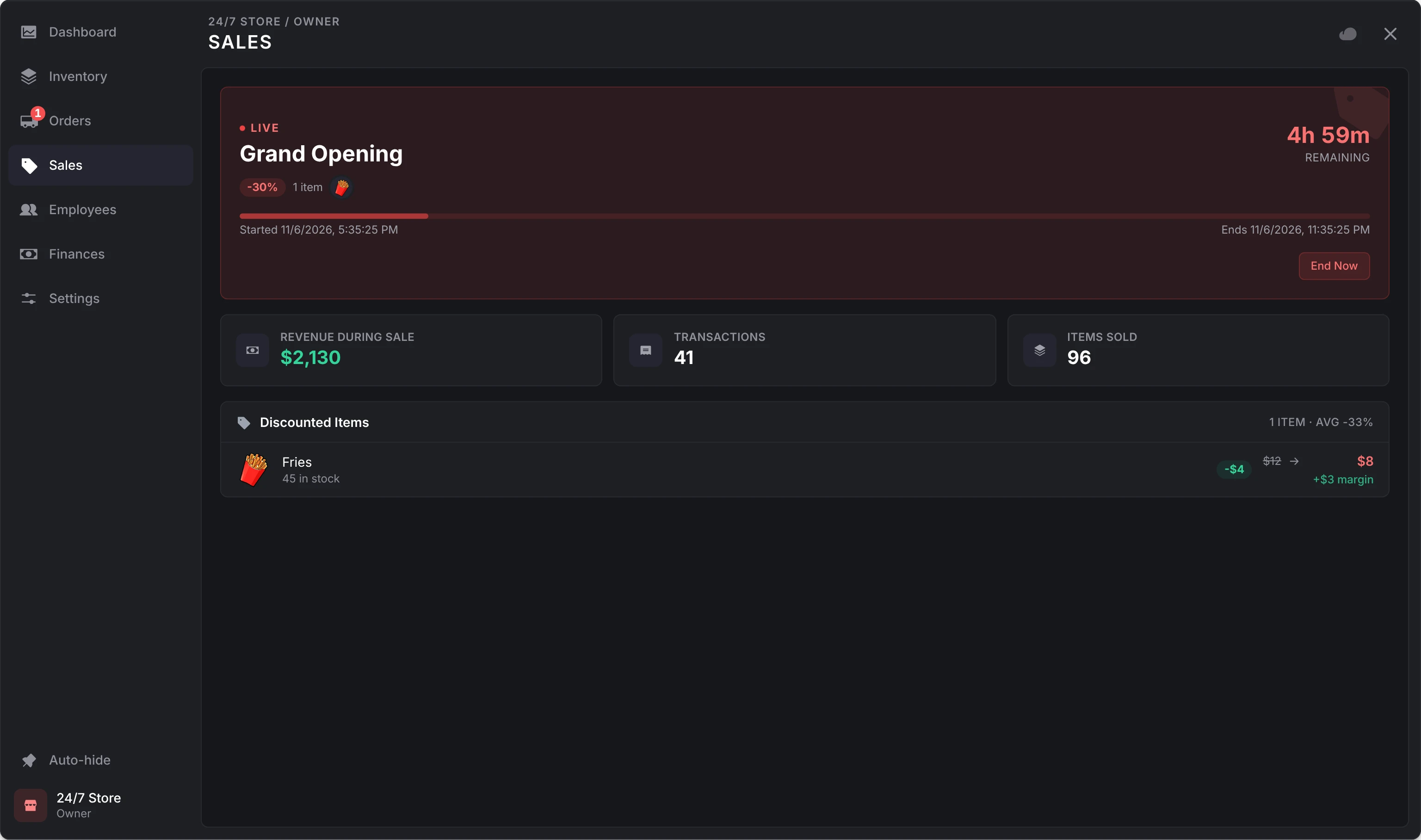
A sale discounts the shop for a set time:
- a name, such as Weekend Blowout
- a discount from 1% up to Config > Sales > Max sale discount (50% by default)
- a duration in hours, up to Max sale duration (48 by default)
- the whole shop or the items you pick
- optionally, up to 10 jobs: only players with one of them get the sale prices
A discount never takes a price below the catalog's minimum price or wholesale cost, whichever is higher; items held at that floor are marked Clamped. One sale runs at a time. Customers see it in the shop's header with a countdown, and the Sales tab shows members with View Finances the revenue, transactions and items sold since it started. End Now stops it early.
Employees
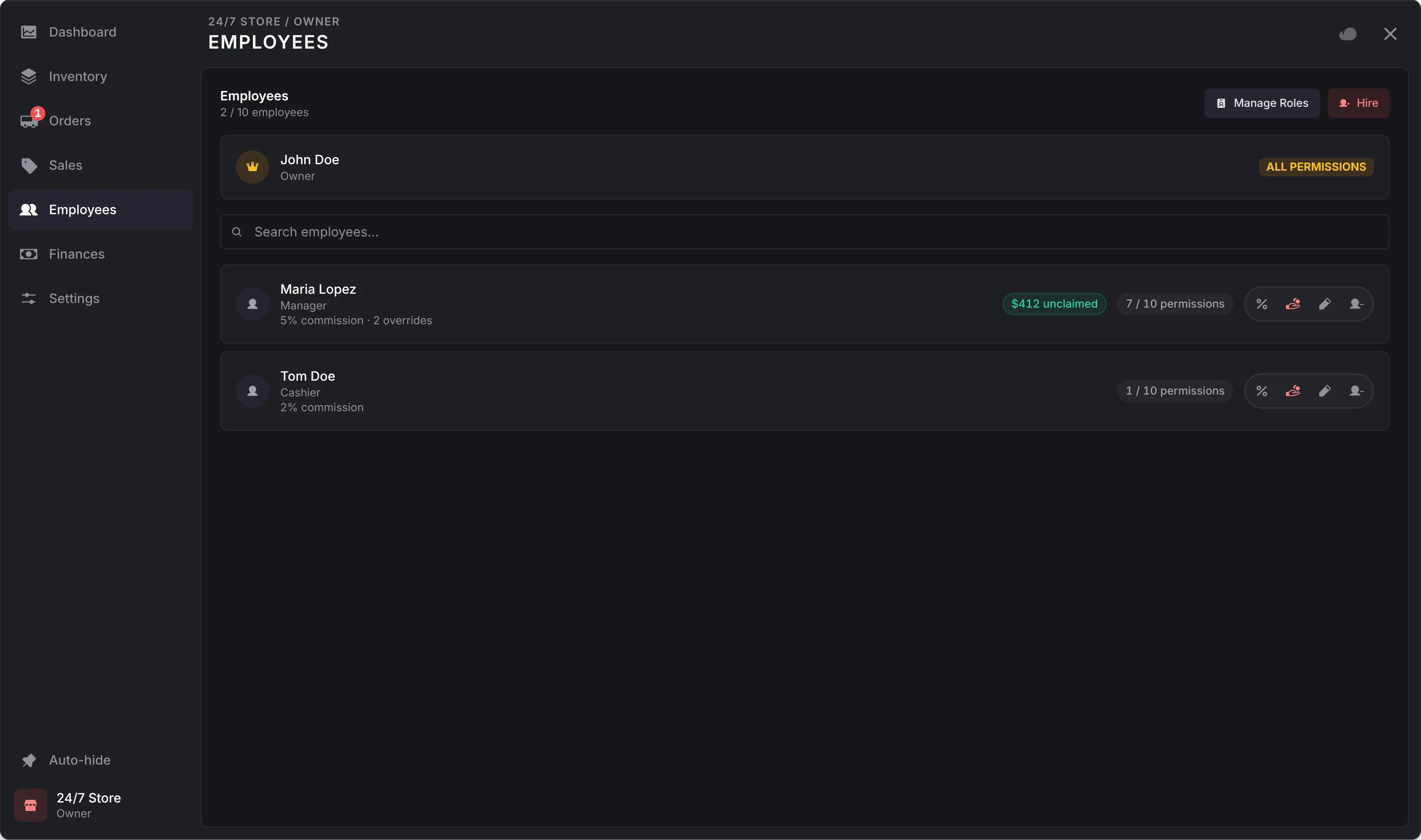
Hire lists the players within 15 metres of you. A new hire starts with Config > Employees > Default permissions for new hires, which the confirm names, and is told they were hired. A shop can have up to Max employees per shop (10 by default), not counting the owner.
For each employee you set a Role name (Cashier) and their permissions. An employee can't change their own permissions, and grants others only permissions they hold themselves; the owner can grant any.
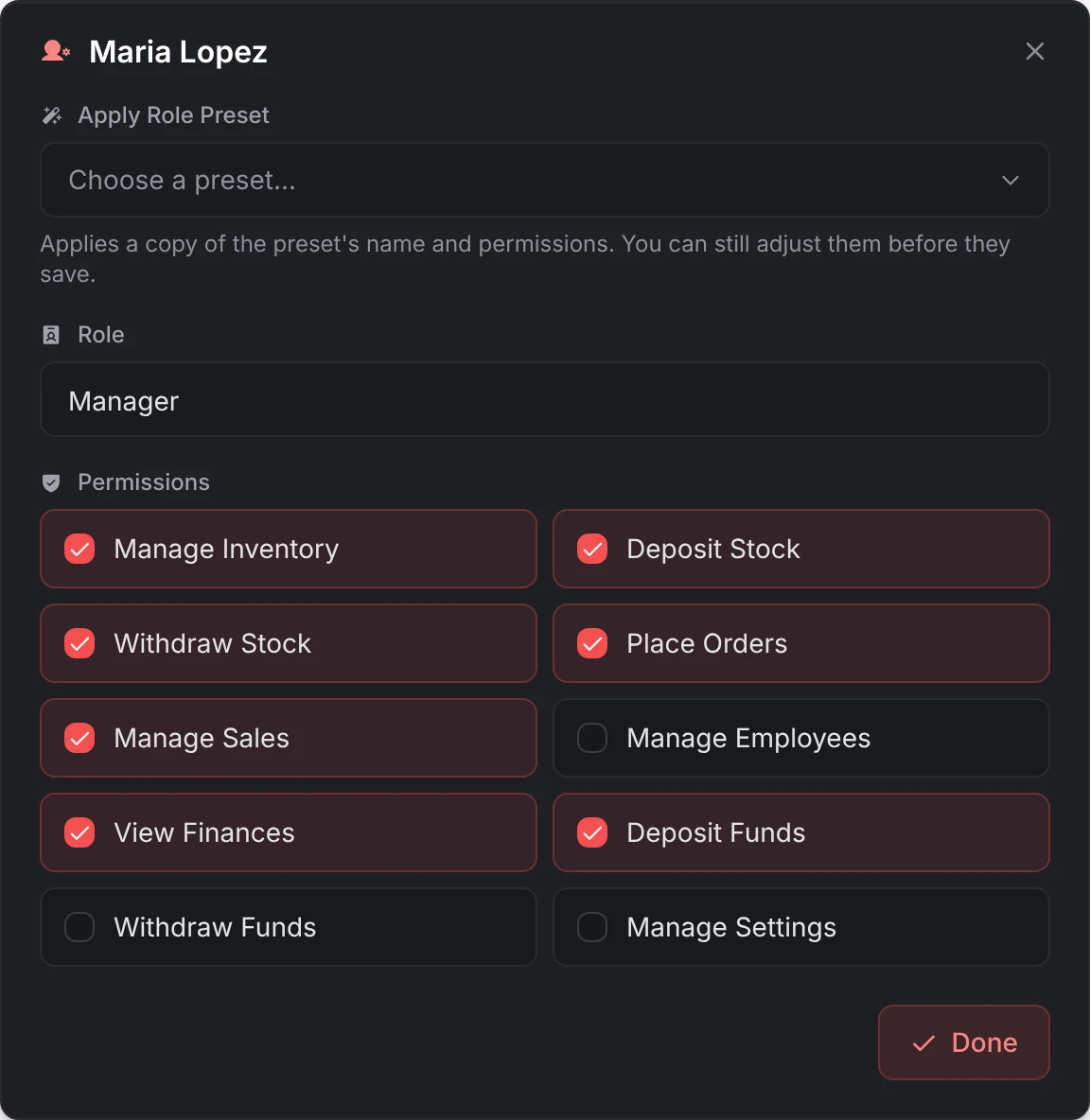
Manage Roles keeps role presets: a name and a set of permissions applied to an employee in one pick (up to Max role presets per shop, 10 by default). A preset is copied when applied, so editing or deleting it later leaves employees as they are.
Fire removes the employee at once, pays out their unclaimed earnings, and tells them if they are online.
Compensation
The owner can give each employee a commission:
- a Base Commission % of every sale, up to Config > Employees > Max commission per employee
- Override Rules by item or by category; the most specific wins: item, then category, then the base rate
- when it is earned (Earns commission): While online (the default for new employees while Commission requires the employee online is on), Always, or While offline
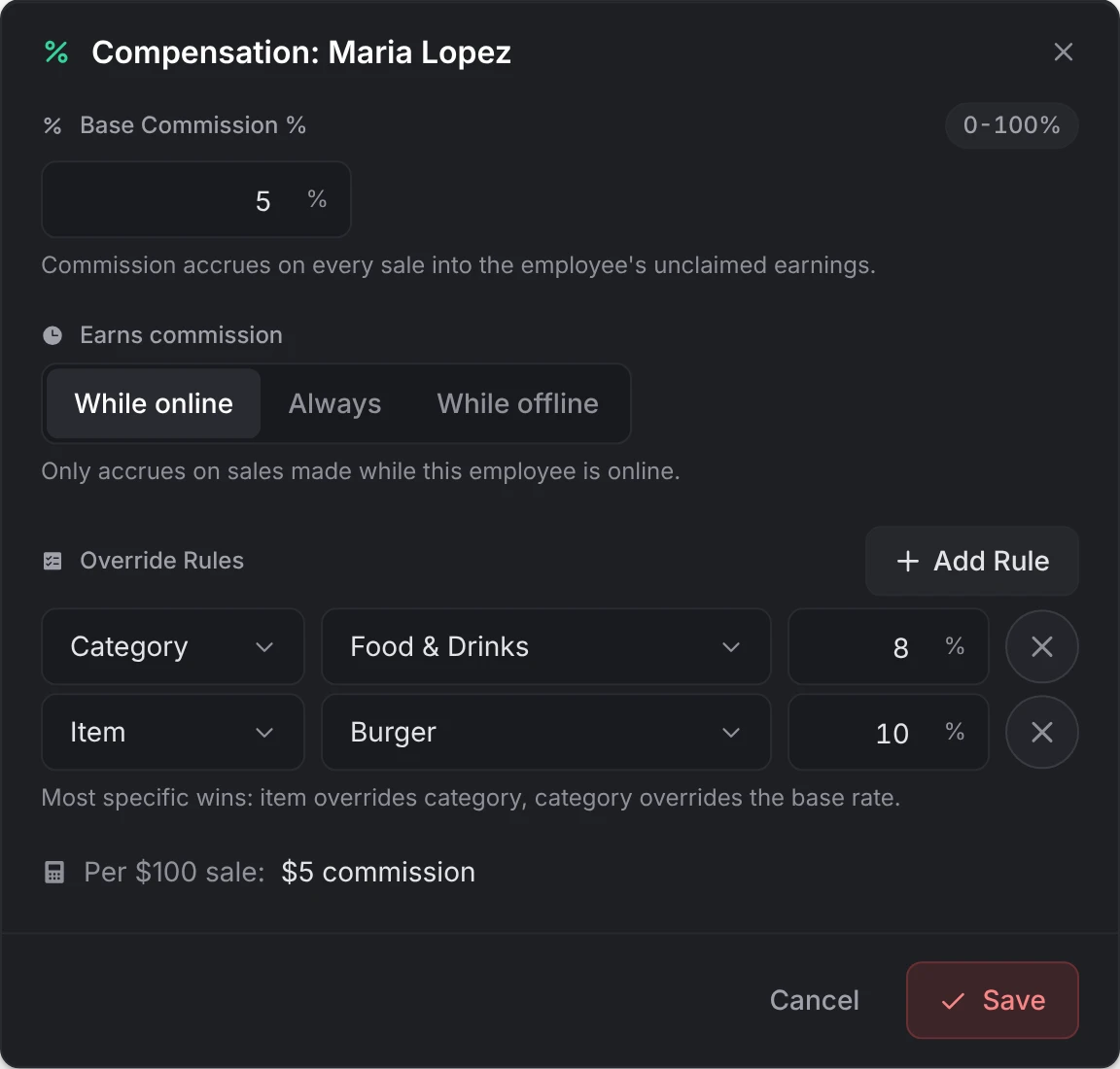
Commission is taken from each sale's proceeds, after revenue shares, and held as the employee's unclaimed earnings. The owner can also Pay Bonus from the shop balance into those earnings, which works while the employee is offline.
When an employee leaves with earnings unclaimed (fired, or the shop is abandoned, repossessed or deleted), they are paid at once if they are online. Otherwise the money waits and is paid the next time they join, with a notice.
Finances
The shop balance, with the day's takings, the revenue shares an admin set (taken from every sale), and every transaction since this owner took the shop, with filters by type. Members with the money permissions can:
- Deposit their own money into the shop balance
- Withdraw shop money to their own account, up to Config > Finances > Max withdrawal per transaction when one is set
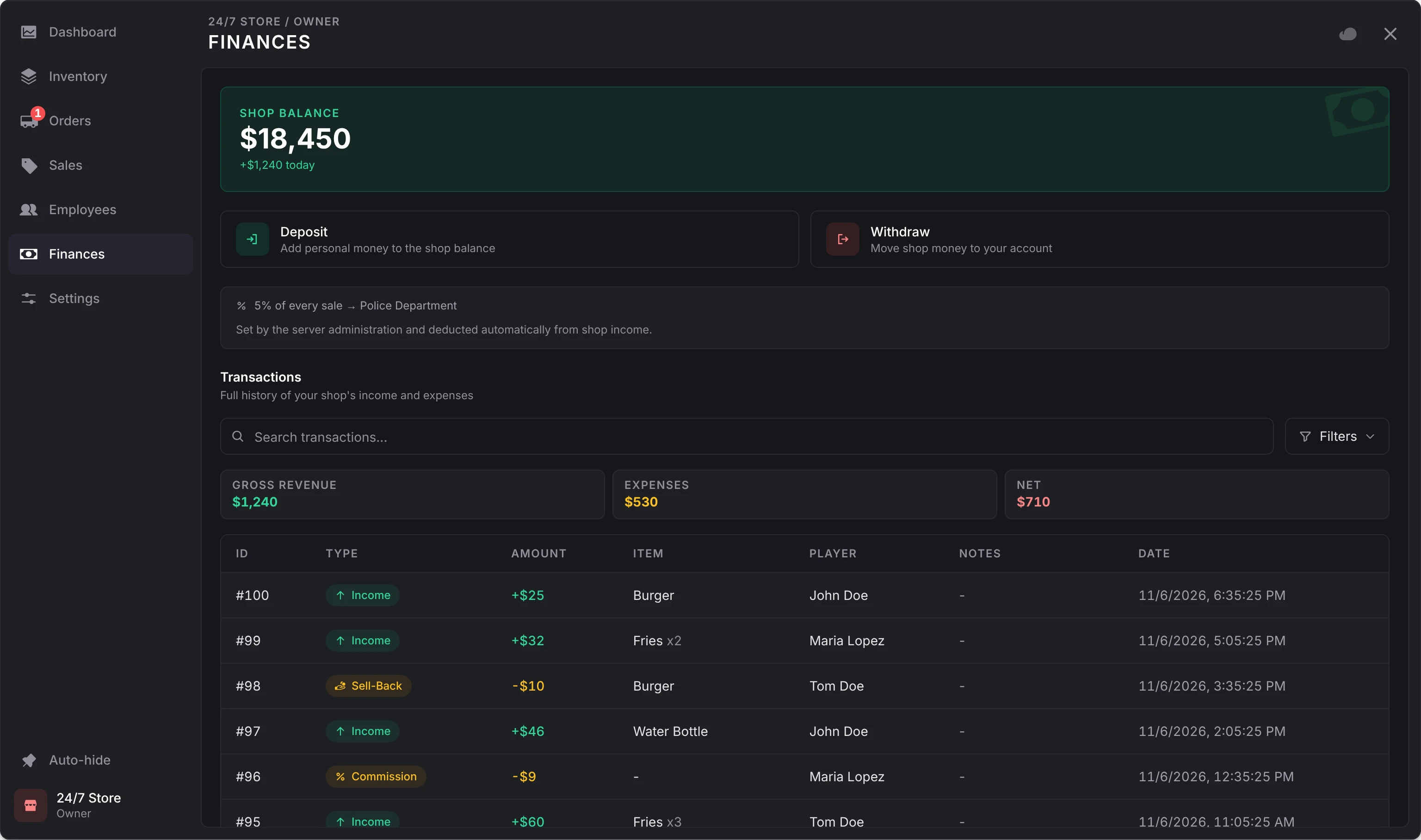
The accounts offered are Config > Finances > Balance accounts (bank and cash by default). With lation banking, the balance is the shop's account at the bank; see bank accounts.
Settings
| Setting | What it does |
|---|---|
| Shop Name, Subtitle | Rename the shop, while Config > Ownership > Owners may rename their shop is on. |
| Operating Hours | When customers can shop, while Owners may set operating hours is on. |
| Transfer Ownership | Owner only. See transferring a shop. |
| Abandon Shop | Owner only. See abandoning a shop. |
With both customization options off, the tab says the server has turned them off.
Still stuck? Ask in our Discord: the people who write the scripts answer.
Last updated
Player ownership
How lation shops sells a shop to a player, what changes hands on a purchase, transfer, abandon or repossession, and how shop balances become accounts at lation banking.
Storefront
What players see at a lation shops shop (buying with a cart, selling items back, purchase history, sales, a shop for sale) and what the server checks at checkout.