Admin panel
How to open /chopadmin in lation chop shop, read the overview, change, search and reset settings, and move a whole setup between servers with export and import.
lation chop shop has no Lua config file. Every setting lives in the database (the lation_chopshop_config table, one row per section) and is changed in game in the admin panel. Every option and its default is on the configuration page.
Opening it
Run /chopadmin. It opens for players with the ACE permission lation_chopshop.admin:
add_ace group.admin lation_chopshop.admin allowThe check lives in lua/server/utils/perms.lua, which ships open, so you can swap it for your own permission system:
function IsAdmin(source)
    return IsPlayerAceAllowed(source, 'lation_chopshop.admin')
end
The server asks the same check again for everything the panel reads or changes. The rail on the left has two pages, Overview and Config. While lation ui runs, the panel follows its theme and UI scale.
Overview
The first page shows the last 7 days or 30 days, each figure against the same number of days before:
- Parts chopped, Choppers, Vehicles chopped and Contracts paid, each with its trend and a line of the days in the range.
- Parts chopped per day, with a tab per part and a mark for the same day a week before. The table button shows the same numbers as a table.
- Right now: contracts about to run out, cars on the stands, contracts that ran out but are still held, and a reminder when nothing is being logged.
- Top choppers by parts taken, in the range or of all time, on a podium.
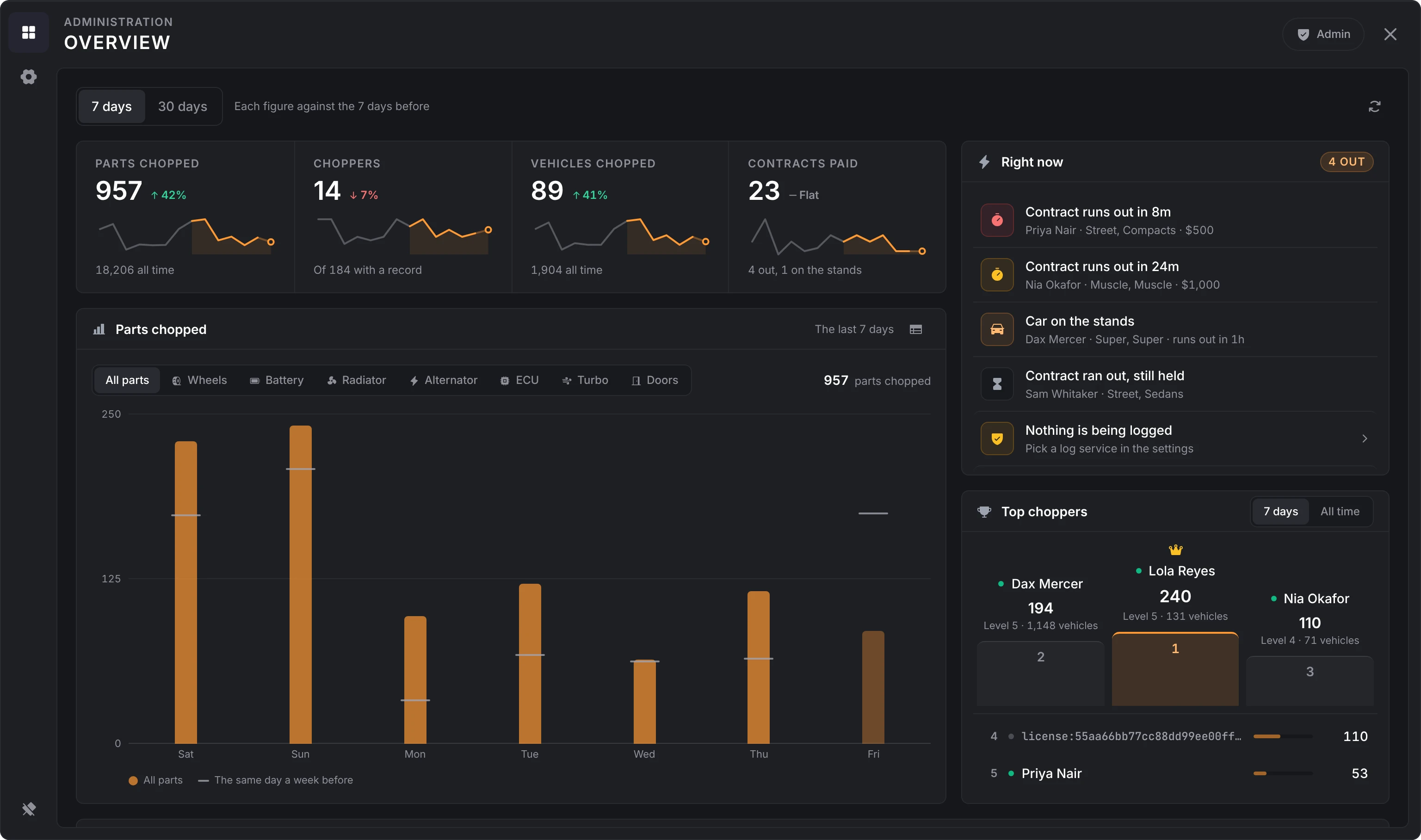
Further down: When the server chops, the parts by the hour of each weekday; Contracts out right now, with the player, tier, class, time left and bonus; and Setup at a glance, where each line opens its section of the config.
The figures come from lation_chopshop_history, which keeps 60 days. On a server that ran an older version, the history holds its parts already, but vehicles chopped and contracts paid are counted from the first start on 3.3.0, and those two figures say from when.
Config
The Config page opens on a card per section: what it covers, a summary of its main settings, and how many of its options are changed from the default. The sections are Setup, Start, Contracts, Locations, Items, Minigames, Experience, Shops and Logging.
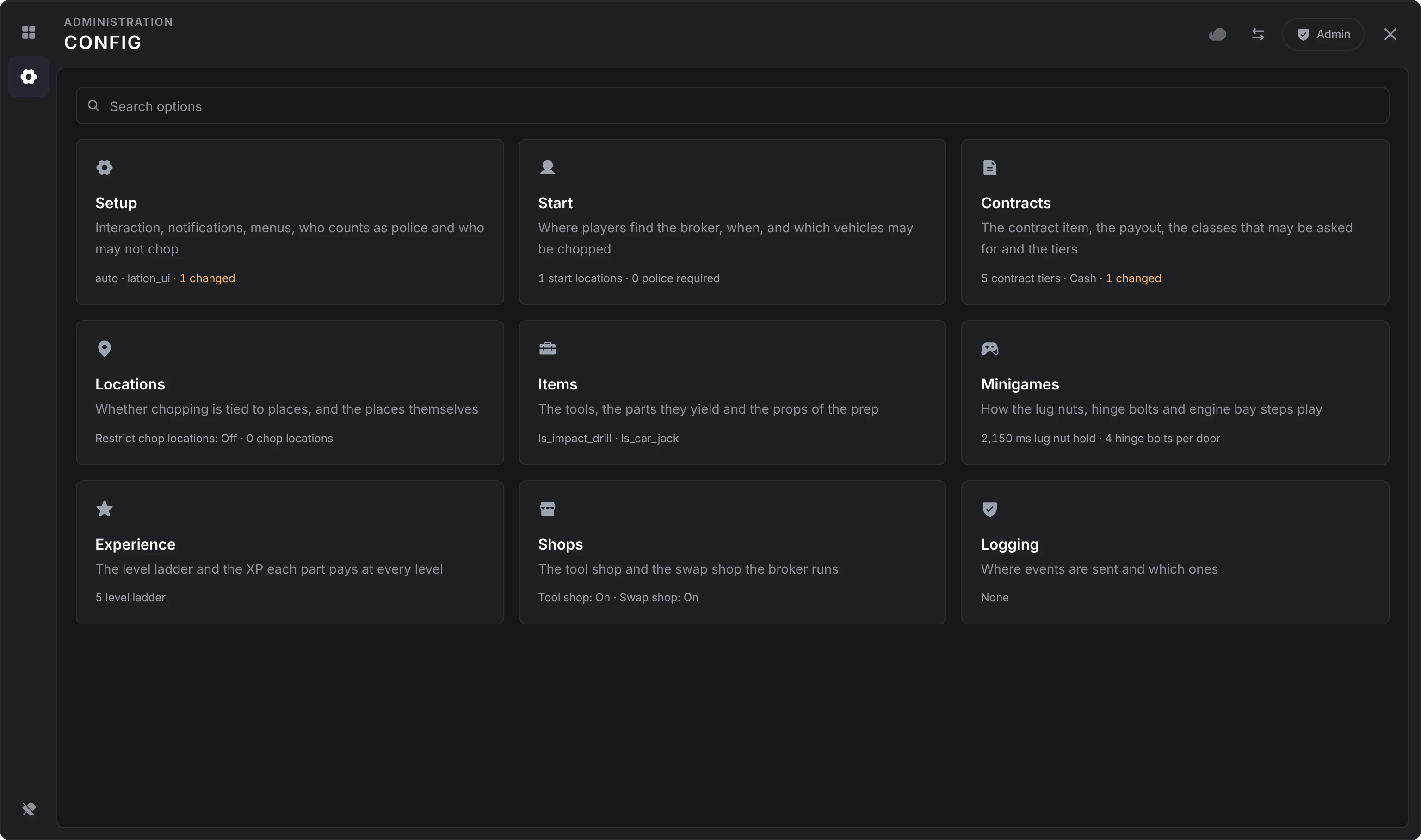
A section opens as titled cards of options, each with what it does. A list (start locations, contract tiers, swaps) opens each entry on a page of its own, which ends in a Danger zone with Remove. The last entry of a list can't be removed.
Changing settings
- Saving. A change saves on its own a moment after you make it, and reaches the server and every player at once. The cloud in the header says whether everything is saved; click it to save now, or to retry a save that failed. Anything pending is saved when you leave the page or close the panel.
- Changed options. An option that differs from its default has a dot before its name. Hover it for Reset to default, which names the default. Reset section under a section puts all of its options back, after asking.
- Search. The search box on the Config page finds an option in any section, inside every list entry too, and you can change it right in the results.
- Coordinates. Use my position fills a point with where you stand and face, and Go there takes you to it.
- Closing. Press
Escor the close button.
The defaults are the ones in lua/shared/defaults.lua, which seeds a section the first time the resource starts. Editing that file changes nothing on a server that has started once, except what a reset puts back.
Settings that need a restart
Two options are marked with an info icon, Applies after a restart: Setup > Version check and Setup > Interaction system. Restart lation_chopshop after changing them. Everything else applies as it saves.
Export and import
The arrows button in the header opens Export or import.
- Export shows the whole configuration as one text, with Copy. Keep it as a backup or move it to another server. It holds your Discord webhook URL, so keep it private.
- Import takes that text pasted in. Apply import asks to confirm, then every section in the text replaces the one on the server, and players see it at once. A section the text doesn't carry stays as it is. Only an export from the same format (format version 3) is accepted.
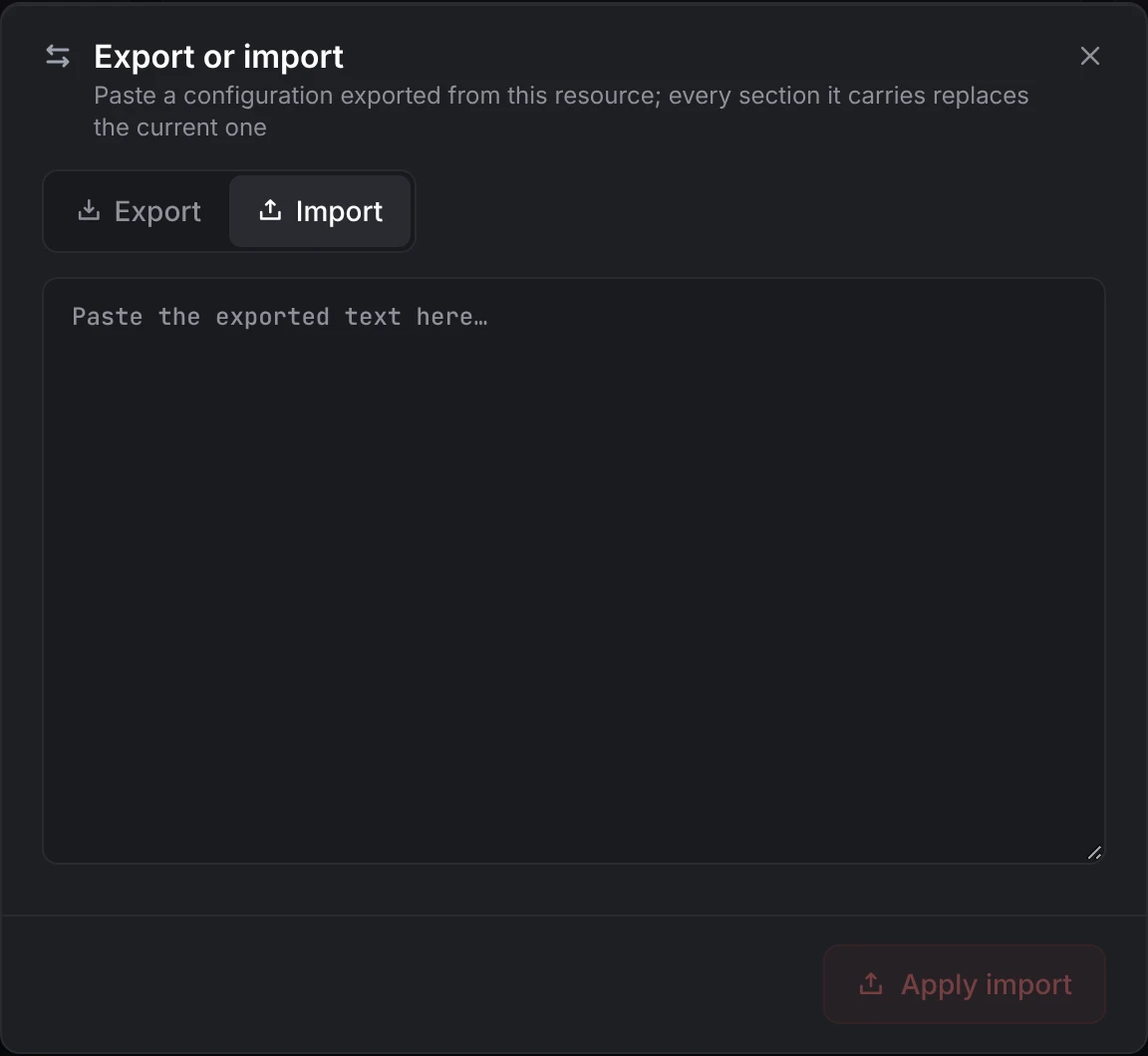
The keys on the configuration page are the paths inside that text, for example contracts.allowCancel.
Reset a section
Reset section at the bottom of a section, or Reset to default on an option, puts it back from lua/shared/defaults.lua without a restart.
Each section is also one row in lation_chopshop_config, keyed by its name: setup, start, experience, contracts, locations, minigame, items, shops or logs. Deleting a row and restarting the resource writes it again from the defaults.
Still stuck? Ask in our Discord: the people who write the scripts answer.
Last updated
lation chop shop
Requirements, install steps, items and first start for lation chop shop, a FiveM chop shop with timed contracts, hands-on part removal, co-op and an in-game admin panel.
Contracts and chopping
How players take a lation chop shop contract, jack a car up, take its wheels, doors and engine bay apart, get paid, work a car together and trade parts in.